
Smartphones have become indispensable tools in daily life, yet one common frustration remains: battery life. Android phones, with their wide range of features and apps, can drain power quickly. If you find yourself constantly searching for a charger, this guide offers practical tips to help you get more from your battery. These strategies are easy to apply and can significantly extend your phone’s usage between charges.
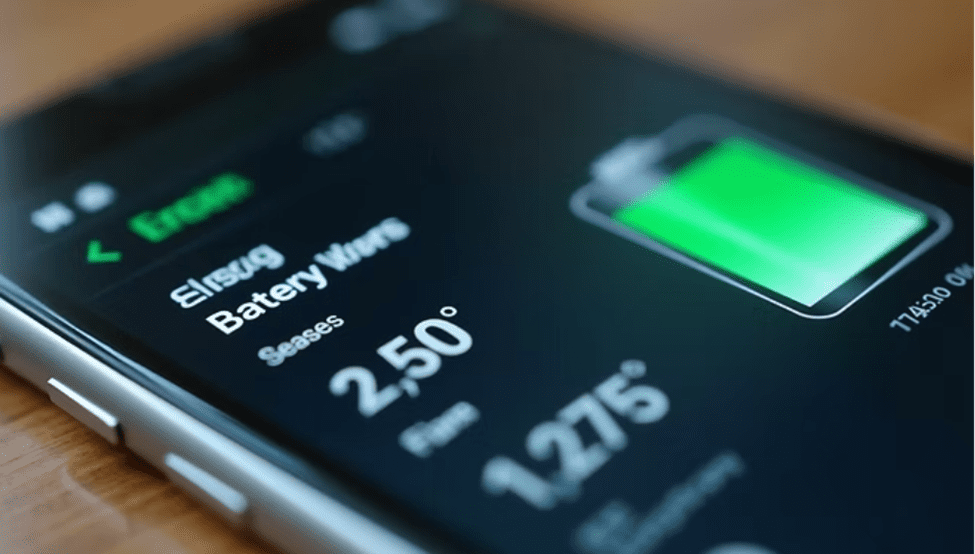
Android phone battery settings screen showing battery usage details
Manage Screen Brightness and Timeout
The display is one of the biggest causes of battery drain on Android smartphones. Keeping screen brightness high or allowing the screen to stay on for long periods quickly reduces battery life.
Lower your screen brightness manually or enable Adaptive Brightness, which automatically adjusts brightness based on ambient lighting. Set your screen timeout to the shortest comfortable duration, such as 15 or 30 seconds. Enable Dark Mode or use dark wallpapers—especially on OLED and AMOLED screens, where black pixels consume less power.
Optimizing screen settings can significantly improve daily battery performance.
Limit Background App Activity
Many apps continue running in the background, syncing data and sending notifications even when not in use, which leads to unnecessary battery drain.
Go to Settings > Battery > Background Activity and restrict apps that don’t need constant access. Enable Battery Saver Mode to automatically limit background processes when your battery is low. Close unused apps instead of leaving them minimized.
Reducing background activity helps extend Android battery life and improves overall performance.
Turn Off Unnecessary Connectivity Features
Wireless features like Wi-Fi, Bluetooth, GPS, and mobile data consume power even when idle.
Disable Wi-Fi and Bluetooth when not in use. Adjust Location Services so apps access location only while in use. Enable Airplane Mode in low-signal areas to prevent constant network searching, which drains battery rapidly.
Managing connectivity settings reduces hidden battery consumption.
Use Built-In Battery Optimization Settings
Android includes powerful tools to help conserve battery efficiently.
Enable Battery Optimization for apps to limit unnecessary background usage. Turn on Adaptive Battery, which learns your usage habits and restricts rarely used apps. Regularly review battery usage statistics to identify power-hungry apps.
These settings allow your phone to use power more intelligently.
Keep Apps and System Software Updated
Outdated apps and operating systems can cause bugs and inefficient battery usage.
Update your Android OS to benefit from the latest battery optimizations and performance improvements. Keep apps updated through the Google Play Store, and uninstall or disable unused apps that drain battery in the background.
Regular updates improve stability and extend battery life.
Avoid Extreme Temperatures
Battery performance drops significantly in extreme heat or cold.
Avoid leaving your phone in direct sunlight or very cold environments. Do not charge your phone in extreme temperatures, as this can permanently damage the battery. If your phone overheats, close heavy apps and allow it to cool down.
Maintaining a moderate temperature helps preserve long-term battery health.
Reduce Notifications and Sync Frequency
Frequent notifications and background syncing cause your phone to wake repeatedly, increasing battery usage.
Limit notifications to essential apps only. Adjust sync frequency for email and social media accounts, or switch to manual syncing. Disable auto-sync for apps that don’t require real-time updates.
Fewer wake-ups mean longer standby and screen-off battery life.
Use Power-Saving Modes When Needed
Most Android devices include Power Saving Mode and Ultra Power Saving Mode to extend battery life during critical moments.
These modes reduce CPU performance, limit background data, and disable non-essential features. Customize power-saving settings to balance performance and battery efficiency.
Using power-saving modes can add hours of extra usage when your battery is low.
Manage Widgets and Live Wallpapers
Widgets and live wallpapers constantly update and animate, consuming battery power.
Remove unused widgets, replace live wallpapers with static images, and limit the number of home screens.
Reducing visual effects helps lower background power consumption.
Charge Smartly to Protect Battery Health
Proper charging habits play a key role in maintaining battery capacity over time.
Avoid letting your battery drop to 0% frequently, and don’t keep it plugged in at 100% for long periods. Use the original charger or a certified replacement, and charge in short sessions rather than overnight when possible.
Smart charging habits help extend the lifespan of your Android battery.