
A slow laptop can turn simple tasks into frustrating experiences. Whether you use your laptop for work, study, or entertainment, sluggish performance wastes your time and energy. The good news is that you don’t always need to buy a new device to speed things up. Many common issues can be fixed with simple steps that anyone can follow. This post shares 10 easy tips to help your laptop run faster and smoother.
Laptop performance monitoring screen with keyboard
1. Restart Your Laptop Regularly. Laptop performance monitoring screen with keyboard
Laptop performance monitoring screen with keyboard. It sounds basic, but many people keep their laptops running for days or weeks without restarting. Restarting clears temporary files and stops background processes that slow down your system. Aim to reboot your laptop at least once a day or every few days if you use it heavily.
2. Remove Unnecessary Startup Programs
Some programs launch automatically when you turn on your laptop, which can slow down startup time and overall performance. To fix this:
- On Windows, open Task Manager (Ctrl + Shift + Esc), go to the Startup tab, and disable programs you don’t need immediately.
- On macOS, go to System Preferences > Users & Groups > Login Items and remove unnecessary apps.
This simple step can reduce boot time and free up system resources.
3. Clean Up Your Hard Drive
A cluttered hard drive can slow down your laptop. Delete files you no longer need, uninstall unused programs, and clear your downloads folder. You can also use built-in tools:
- Windows has Disk Cleanup, which removes temporary files and system caches.
- macOS offers Storage Management under About This Mac > Storage.
Freeing up space helps your laptop access files faster and improves responsiveness.
4. Update Your Operating System and Drivers
Outdated software can cause performance issues and security risks. Keep your operating system and device drivers up to date:
- On Windows, check for updates in Settings > Update & Security.
- On macOS, use Software Update in System Preferences.
Updated drivers ensure your hardware works efficiently, and system updates often include performance improvements.
5. Scan for Malware and Viruses
Malware can consume resources and slow down your laptop. Run a full system scan with trusted antivirus software. Many free options like Windows Defender or Avast provide reliable protection. Remove any threats found to restore your laptop’s speed.
6. Adjust Visual Effects for Better Speed
Fancy animations and visual effects can look nice but may slow down older or less powerful laptops. You can turn off or reduce these effects:
- On Windows, search for “Adjust the appearance and performance of Windows” and select “Adjust for best performance.”
- On macOS, reduce transparency and motion in Accessibility settings.
This change can make your laptop feel snappier without affecting functionality.
7. Upgrade Your Hardware
If your laptop is still slow after software fixes, hardware upgrades might help. Two common upgrades are:
- Add more RAM: More memory allows your laptop to handle multiple tasks smoothly.
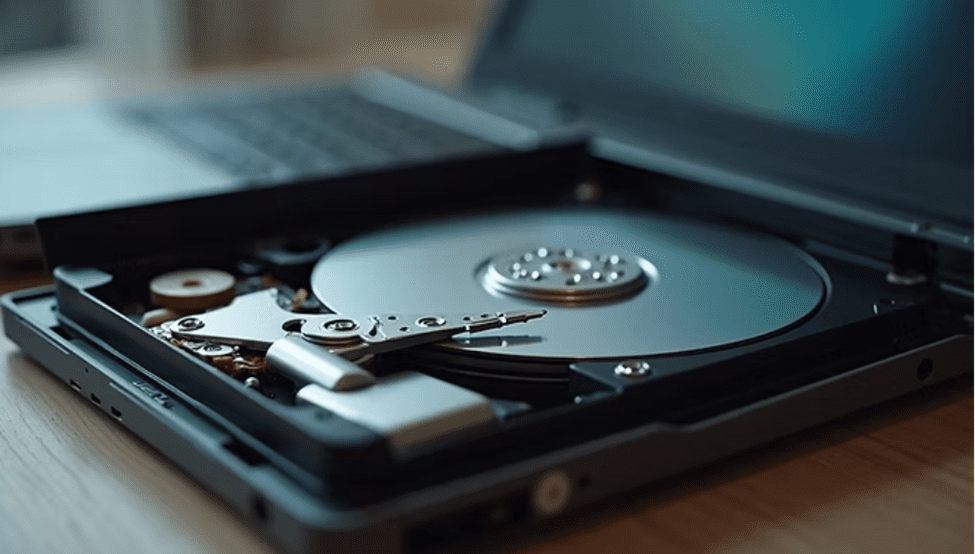
- Switch to an SSD: Replacing a traditional hard drive with a solid-state drive drastically improves boot times and file access speeds.
Check your laptop’s specifications and compatibility before purchasing upgrades.
Laptop SSD installation close-up
8. Manage Your Browser and Extensions
Web browsers can slow down your laptop, especially with many tabs or extensions open. To improve performance:
- Close unused tabs regularly.
- Disable or remove unnecessary browser extensions.
- Clear your browser cache and cookies periodically.
Using a lightweight browser or limiting background tabs can also help.
9. Keep Your Laptop Cool
Overheating can cause your laptop to throttle performance to protect hardware. Make sure your laptop’s vents are clean and unobstructed. Use it on hard surfaces rather than soft ones like beds or couches. Consider a cooling pad if you use your laptop for gaming or heavy tasks.
10. Reset or Reinstall Your Operating System
If your laptop remains slow despite all efforts, a fresh start might be necessary. Resetting or reinstalling the operating system removes accumulated software issues and restores default settings. Back up your important files before doing this. Both Windows and macOS offer easy ways to reset or reinstall without needing technical expertise.